Microsoft Copilot Chat
What is Copilot Chat?
Microsoft Copilot is an AI-powered assistant that boosts efficiency and creativity. At UMass Boston, the enterprise Copilot Chat is available on the web (not built into apps like Word or Excel) m365.cloud.microsoft/chat.
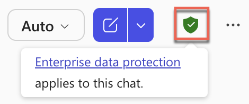
🔐 Important: Sign in with your UMass Boston Microsoft 365 account and look for the enterprise shield icon. Learn why this matters.
Use Copilot the Right Way—Start Here
Do not use Copilot to process personal information that could violate HIPAA or other data protection laws. We offer tailored guidance for:
- Students – Using Copilot to support learning with integrity
- Staff – Using Copilot ethically and productively at work
- Faculty – Designing assignments and setting expectations around AI use
- Researchers – Managing information and sources responsibly
- Watch a Video – Responsible Use of Copilot to learn more!
Get to Know Copilot Chat
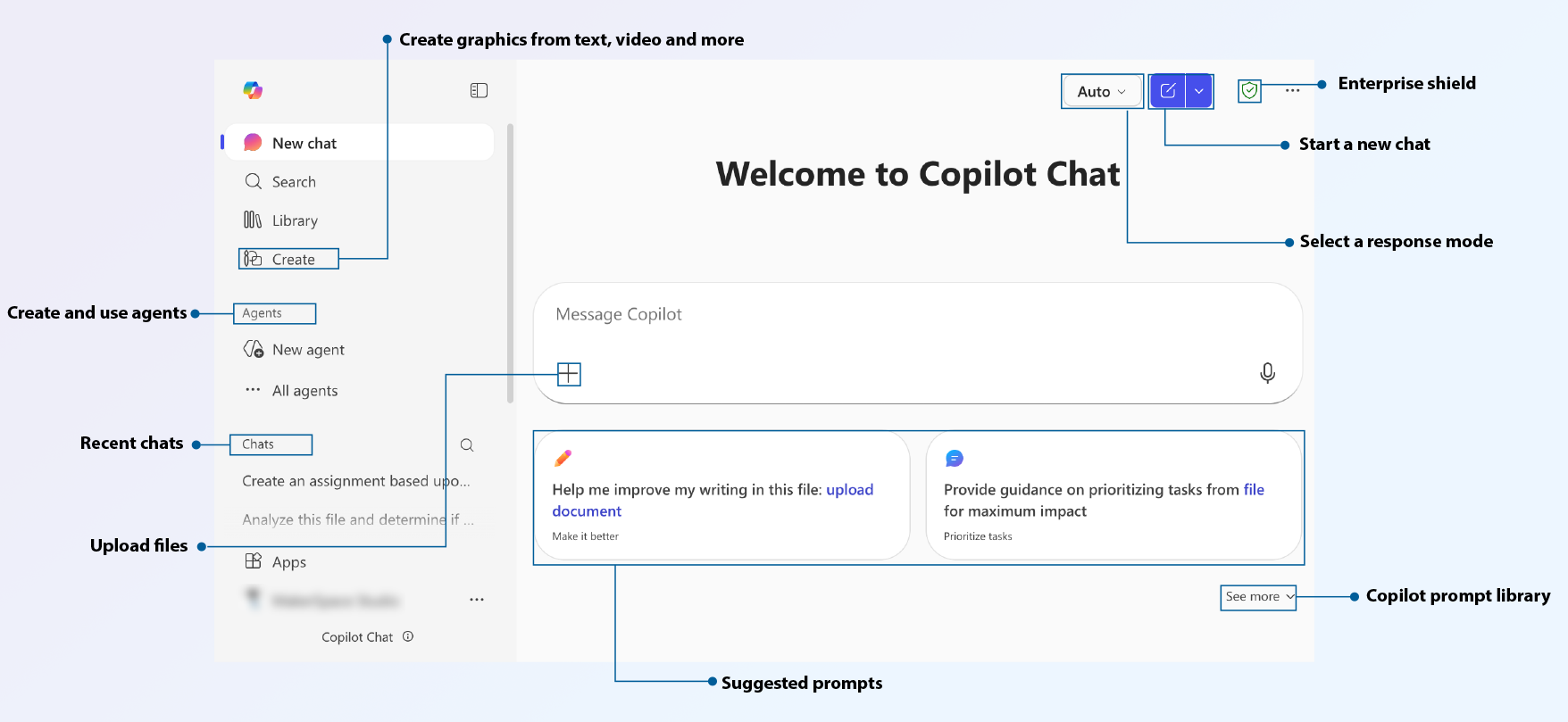
Key features, at a glance:
- Create graphics and more: Turn your idea into image, design, video or podcast.
- Create and use agents: Use an existing agent or create a new one for your personal use.
- Recent chats: Jump back into an earlier conversation.
- Upload files: Add documents so Copilot can respond using that content.
- Suggested prompts: Try a starter question and tweak it for your needs.
- Prompt Gallery: Browse more ideas—including any saved prompts.
- Select a response mode: Choose faster or more thoughtful responses depending on task.
- Start a new chat: Clear the thread and begin fresh.
- Enterprise shield: Confirms protected environment.
Watch an Introduction to Microsoft 365 Copilot Chat video, created with Clipchamp and AI voice tools included in UMass Boston’s Microsoft 365 account.
B.E.A.C.O.N. Prompt Framework
To get the best results from Copilot, use the B.E.A.C.O.N. Framework, a practical guide for writing effective AI prompts at UMass Boston.
B. Background—Set the context and role for the AI
Example: “I am a staff member in an academic department and support faculty and students with daily administrative and communication tasks.”
E. Engagement—Identify the audience and tone
Example: “This content is for college students and should use an approachable, supportive tone.”
A. Aim—State the purpose and goals
Example: “Create a step-by-step checklist to help staff prepare for the start of the semester.”
C. Curriculum—Integrate pedagogy and teaching principles, useful for learning, training, or instructional tasks.
Example: “Follow higher education best practices and emphasize clarity, accessibility, and consistency.”
O. Outreach—Include resources and cultural relevance
Example: “Include culturally inclusive examples and links to free learning resources.”
N. Nuance—Add details and specific instructions
Example: “Organize the content with clear headings, timing, and assessment ideas.”
Example Prompt using the B.E.A.C.O.N Framework
You are an experienced data science educator (B). Create a 60-minute lesson plan for college students new to data visualization (A). Use an approachable tone (E) and active learning principles (C). Include examples, short exercises, and culturally inclusive resources (O). Provide links to free tutorials or datasets. Structure the plan with objectives, activities, timing, and include assessment ideas (N).
A Note of Caution
Copilot is powerful, but it’s not perfect. Keep these best practices in mind:
- Always fact-check the results before using them.
- Ask for sources – request links or references when accuracy matters.
- Use human oversight – never rely solely on AI for critical decisions.
- Watch for unintentional bias – AI can reflect bias from training data or inputs.
- Don’t be fooled by confident tone – answers may sound right but still be wrong.
- Copilot doesn’t “remember” long-term — it may show chat history, but it won’t reliably keep or reuse context. Save reusable prompts and key outputs in Copilot Pages.
Even when results look polished and professional, they should be reviewed carefully. Copilot works best as a helpful assistant, not a final authority.
Copilot Basics and Prompting Tips
Getting Started with Copilot Chat
New to Microsoft Copilot? Start here:
-
What is Copilot? – Learn what Copilot can do and how it enhances your work.
-
Getting Started with Copilot – Step-by-step guide from Microsoft on how to access, install, and use Copilot's features across your devices.
- Introduction to Copilot Chat – Learn how to use Copilot Chat in your work and studies.
Using Copilot Prompts
Make the most of Copilot with well-crafted prompts:
- Copilot Prompts: Learn how prompts work and get tips for writing clear, effective instructions to improve results.
- AI Prompt Guide for Students, Faculty and Staff: UMass Boston resource with tailored, ethical prompt examples for learning, teaching, and working with AI.
- Prompting Best Practices for Copilot Chat: Explore tips that make prompting more productive and tailored to your needs.
Frequently Asked Questions (FAQ)
What is the benefit of using Copilot with my UMass Boston account instead of the public version?
Security and Privacy
- When you sign in to Copilot with your UMass Boston Microsoft 365 account, your information is protected under the same security and privacy standards that apply to all university Microsoft services.
- Prompts and responses are not used to train public AI models.
- Conversations are tied to your UMass Boston login and managed under the university’s Microsoft 365 compliance framework.
- No one else can see your chats or activity unless you choose to share them.
Data Access
- At this time, Copilot for UMass Boston provides access to public web information only. It does not connect to your university files, emails, or Teams chats.
This means you can:
- Explore ideas, summarize information, or draft content safely within UMass Boston’s secure environment.
- Ask questions that relate to your studies, work, or campus life.
- Copilot may also surface information from UMass Boston’s public website when it’s available online.
Example
Asking “What are good ways to prepare for finals?” will give you general web-based advice. Asking “Where can I get IT help at UMass Boston?” may show information from the university’s public IT website.
What sources does Copilot use to answer my questions?
Public Web Sources
Copilot uses information from publicly available web pages such as:
- Educational and news sites
- Microsoft documentation
- Publicly accessible university pages
These results are selected to provide reliable, general answers and guidance.
UMass Boston–Related Sources
Copilot can include information from UMass Boston’s public website if relevant to your question. It does not search inside university systems like OneDrive, SharePoint, or Outlook at this time.
Access and Permissions
- Copilot only draws from information that is publicly available on the web.
- It cannot access your private files or messages.
- You control what you share—Copilot will never view your documents, emails, or Teams chats.
How can I share content with Copilot?
You can paste information directly into the chat, such as text you'd like help rewording or summarizing. You can also upload images (like screenshots or charts) for Copilot to describe or analyze.
Note that Copilot cannot access your OneDrive, SharePoint, or Teams files.
Everything you share stays private to your session. Copilot doesn’t store or share what you enter or upload, and nothing is saved unless you choose to copy or share it yourself.
What is a Copilot agent (in Copilot Chat)?
In Copilot Chat, an “agent” is a personal, reusable helper you set up with instructions (and sometimes a limited set of reference content) so Copilot responds in a more consistent way for a specific task.
Can I create “lite agents” (Agent Builder) in Copilot Chat at UMass Boston?
Yes—for personal use. Anyone signed in with an @umb.edu account can create a personal agent in Copilot Chat for their own workflow. See how to Build your own agent with Microsoft 365 Copilot.
Can I share or deploy a Copilot agent for others?
Not currently at UMass Boston. Shareable/organizational agents require licensing and sharing capabilities that aren’t available in our current environment.
Are my prompts and Copilot Chats monitored?
Staff do not monitor individual user behavior in Copilot Chat. However, Copilot Chat activity should be treated the same way as email or any other university‑provided work tool. Interactions may be accessible to UMass Boston and Microsoft if needed for security purposes, compliance reviews, investigations, or public records requests, in accordance with applicable policies and laws. With that in mind, you should treat Copilot as a professional tool and use it only for appropriate university related purposes.